EC2 has one compute product and seven ways to pay for it. For the identical instance the rates differ by more than three times, so how you buy often matters more than what you pick. Every discount is sold in exchange for something: a commitment, a constraint, or the right to take the machine back. AWS leads with the discount. Below, each option leads with what it costs you.
The discount ladder
Start with what AWS itself advertises as the ceiling for each option. These are maximums under ideal conditions, not what a normal bill achieves — but they set the shape of the decision.
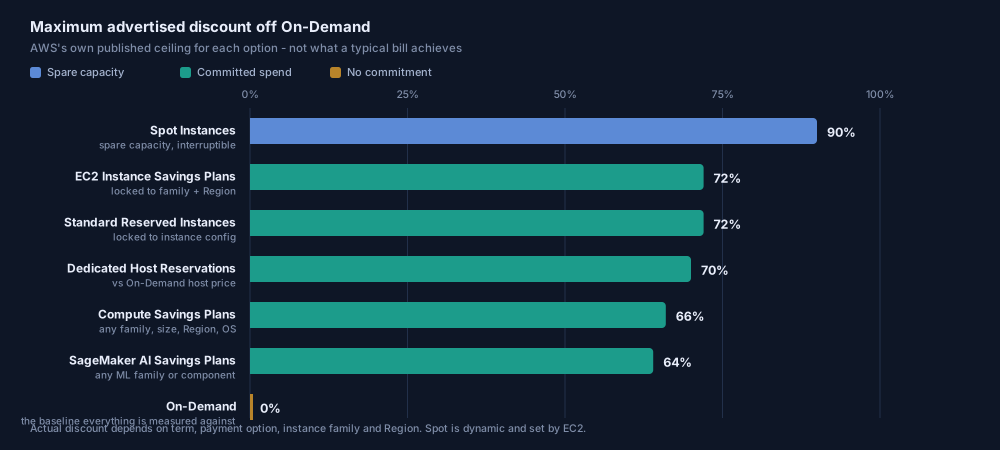
One number there gets misquoted constantly. Compute Savings Plans cap at 66%, not 72%. The 72% belongs to EC2 Instance Savings Plans, which are the less flexible product.
The confusion comes from AWS itself. Its overview page says "up to 72%" for Savings Plans generally; the detail page then splits it into Compute 66%, EC2 Instance 72%, SageMaker AI 64%, Database 35%. So when a blog promises 72% while keeping full flexibility, it has quoted the headline and skipped the breakdown. You cannot have both numbers at once.
On-Demand: the baseline
You pay by the second for running instances, with no commitment and no capacity guarantee. Every other option is defined as a discount off this rate, so it is worth knowing its exact mechanics.
running state.Savings Plans: commit to money, not machines
You commit to spending a fixed number of dollars per hour, for one or three years. Usage up to that amount gets discounted rates. Anything above it falls back to On-Demand. Note what you are not committing to: an instance type. That is the whole difference from a Reserved Instance.
AWS does not hedge about which one to prefer. Its Reserved Instances documentation opens by recommending Savings Plans instead, calling them "the easiest and most flexible way to save money on your AWS compute costs." When a vendor steers you away from its own older product, that is worth taking at face value.
The four types
- Compute Savings Plans — up to 66%. The flexible one. Applies regardless of instance family, size, Region, operating system, or tenancy, and also covers Fargate and Lambda. You can move a workload from c5 to m5, from Ireland to London, or from EC2 to Fargate, and keep the rate.
- EC2 Instance Savings Plans — up to 72%. The cheaper, narrower one. You commit to a specific instance family in a specific Region (say m5 in Virginia). Within that, size, OS, and tenancy stay flexible.
- SageMaker AI Savings Plans — up to 64%. Covers ML instance usage across family, size, Region, and component, so you can shift from Training to Inference and keep the discount.
- Database Savings Plans — up to 35%. Spans Aurora, RDS, DynamoDB, ElastiCache and others, including serverless usage.
Reserved Instances: commit to a configuration
An RI is not a physical instance; it is a billing discount applied to On-Demand instances that match a set of attributes. Four attributes determine the price: instance type, Region, tenancy, and platform (the operating system). Term is one or three years, with the longer term discounting more.
Offering classes and payment
- Standard RIs give the largest discount but cannot be exchanged — only modified.
- Convertible RIs discount less but can be exchanged for another Convertible RI with different attributes.
- Payment is All Upfront, Partial Upfront, or No Upfront, in descending order of discount. No Upfront requires an established billing history, since it is a contractual obligation to pay monthly for the full term.
- Scope matters: a zonal RI reserves capacity in a specific Availability Zone; a regional RI does not reserve capacity at all. If you need a capacity guarantee, that distinction is the whole point.
Spot Instances: the deepest discount, with a catch
Spot is AWS selling you the servers nobody else booked. Up to 90% off. In return they can take the machine back on two minutes' notice.
A lot of people still think Spot is an auction you bid in. It was, years ago. EC2 sets the price itself now and moves it slowly with supply and demand, so any bidding-strategy advice you find is describing a system that no longer exists.
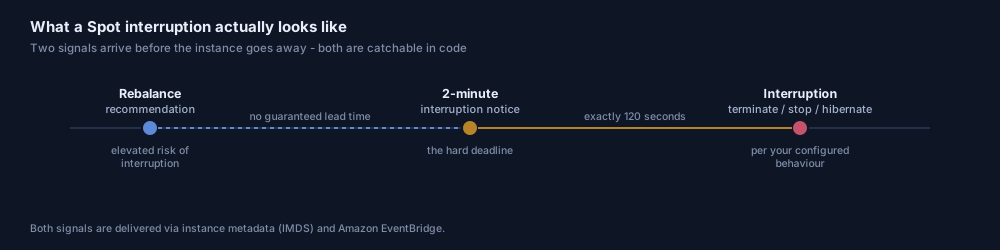
Two signals arrive before an instance disappears, and both are catchable in code via instance metadata or EventBridge. The rebalance recommendation warns that the instance is at elevated risk, with no guaranteed lead time. The interruption notice then gives a hard two-minute warning. Whether the instance is terminated, stopped, or hibernated depends on the behaviour you configured.
Dedicated Hosts, Dedicated Instances, and Capacity Blocks
These are not really cost-optimization tools. Two of them cost more than standard On-Demand — you buy them to satisfy a licence agreement or a compliance clause, and the saving is on software licensing rather than compute.
Dedicated Hosts vs Dedicated Instances
Both run your instances on hardware dedicated to you, and AWS states there is no performance, security, or physical difference between them. The difference is visibility and billing.
- Dedicated Hosts bill per host and expose the physical sockets, cores, and host ID. That visibility is the point: it is what lets you bring per-socket, per-core, or per-VM licences — Windows Server, SQL Server, RHEL, SUSE. They support host affinity, so an instance lands on the same physical server over time. Dedicated Host Reservations discount up to 70%.
- Dedicated Instances bill per instance with no hardware visibility, and carry a $2/hour fee per Region in which you run at least one. That fee is not discounted by Savings Plans. They do support Capacity Reservations, which Dedicated Hosts do not.
Capacity Blocks for ML
The newest option, and the one worth knowing if you touch GPUs. You reserve accelerated instances — P4d, P5, P6, Trn — for a defined window, with a start date up to eight weeks out, and pay only for the reserved time. Instances are placed in EC2 UltraClusters for low-latency interconnect. Up to 64 instances per block, 256 across blocks.
How they combine on one bill
The options are not alternatives to choose between — a well-run account uses three of them simultaneously, matched to the shape of demand rather than picked once.
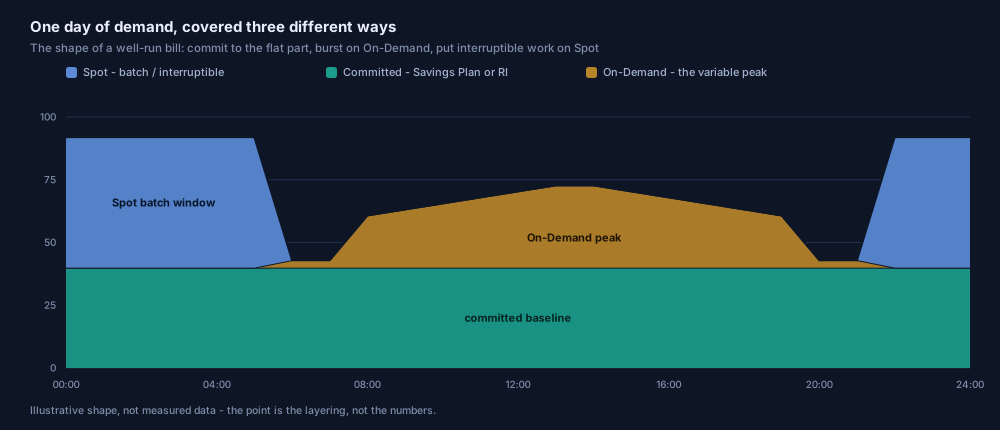
Find the floor of your usage, meaning the level it never drops below, and cover that with a Savings Plan. It is guaranteed to be consumed, so the discount is guaranteed to land. Leave the variable peak on On-Demand: committing to capacity you use six hours a day wastes more than the discount saves. Anything interruptible goes on Spot.
Where people get this wrong is committing to the average instead of the floor. It looks reasonable on a spreadsheet and it loses money at both ends. Everything below the floor stays under-discounted, and everything above it gets paid for on the hours it does not run.
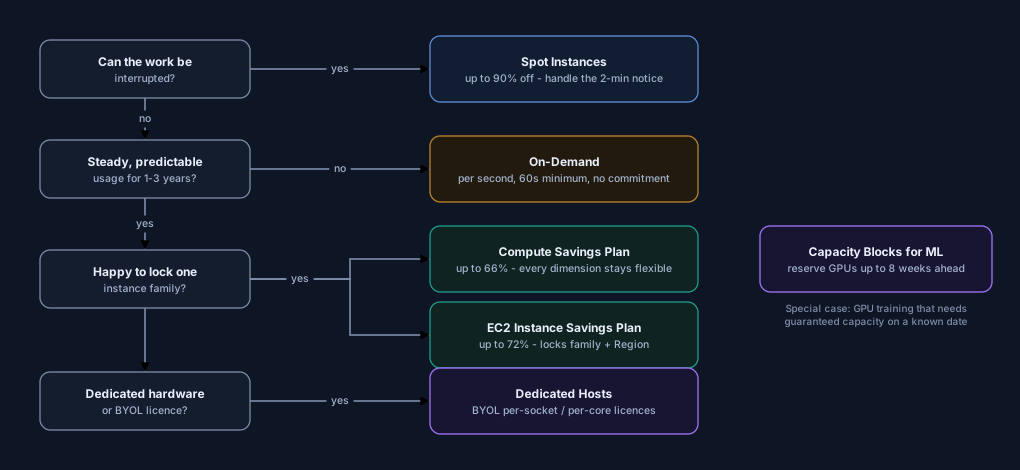
Comparison: the whole set, side by side
Maximum advertised discount, what you commit to, and what you give up.
| Option | Max discount | You commit to | Flexibility | Capacity guarantee | Best for |
|---|---|---|---|---|---|
| On-Demand | 0% (baseline) | Nothing | Total | No | Spiky, short-lived, or not-yet-understood workloads |
| Compute Savings Plan | Up to 66% | $/hour for 1 or 3 years | Any family, size, Region, OS, tenancy; plus Fargate and Lambda | No | The steady baseline, when architecture may still change |
| EC2 Instance Savings Plan | Up to 72% | $/hour + one family in one Region | Size, OS, tenancy within that family | No | A settled workload on a family you will not leave |
| Standard Reserved Instance | Up to 72% | A specific instance configuration | Modify only. No exchange | Yes, if zonal | When you need a zonal capacity reservation too |
| Convertible RI | Below Standard | A configuration you can swap | Exchangeable for another Convertible RI | Yes, if zonal | Long commitment with an expected hardware refresh |
| Spot | Up to 90% | Nothing | Total, but reclaimable on 2 minutes' notice | No. The opposite | Batch, CI, rendering, replicated stateless capacity |
| Dedicated Hosts | Up to 70% (host reservation) | A physical host | Host affinity and placement control | Yes. The host is yours | Per-socket / per-core BYOL and single-tenancy audits |
| Capacity Blocks for ML | n/a. A reservation, not a discount | A fixed GPU window, up to 8 weeks ahead | None. Cannot be cancelled | Yes, for the window | Training runs that need guaranteed GPUs on a date |
Discount ceilings are AWS's published maximums. What you actually realise depends on term, payment option, instance family, and Region — model it against your own usage before committing.
Sources
Every mechanic, percentage, and constraint in this post comes from AWS's own documentation, listed below. Pricing pages change frequently — treat the figures as of the verification date, not as permanent.
- Amazon EC2 billing and purchasing options The canonical list of all seven options and when AWS recommends each.
- Purchasing On-Demand Instances Per-second billing with a 60-second minimum; vCPU-based quotas that default to 0 for GPU families.
- What are Savings Plans? Commitment in USD/hour; 1- or 3-year terms; All / Partial / No upfront.
- Savings Plans types Compute 66%, EC2 Instance 72%, SageMaker AI 64%, Database 35%; the $2/hour Dedicated Instance fee and EKS control-plane exclusion.
- Reserved Instances overview AWS's recommendation of Savings Plans over RIs; the four pricing attributes; Standard vs Convertible; no auto-renewal; no cancellation.
- Regional and zonal Reserved Instances Only zonal RIs reserve capacity.
- Spot Instances Spot price set by EC2 on long-term supply and demand; Spot is not covered by Savings Plans.
- Spot Instance interruptions Interruption reasons, the two-minute notice, and the warning that setting a maximum price increases interruptions.
- Amazon EC2 Spot Instances The "up to 90% off On-Demand" figure.
- Amazon EC2 Dedicated Hosts Host vs Dedicated Instance comparison, BYOL support, and up-to-70% Host Reservations.
- Amazon EC2 Dedicated Instances Single-tenant hardware, per-instance billing.
- Capacity Blocks for ML 8-week lead time, 64/256 instance limits, 11:30 UTC end time, no cancellation.
- Amazon EC2 Pricing Current rates for every option and Region.
Last verified against AWS documentation on 4 August 2026.
The single highest-return move in most accounts is not a smaller instance type — it is noticing that a permanently-running baseline has been billed at On-Demand rates for two years. That is a purchasing decision, it takes an afternoon, and it needs no code change.
FinOps is included in every KubeCube engagement for exactly this reason: commitment coverage, Spot adoption where it is safe, and finding the expired reservation nobody was alerted about.
If the workloads you are pricing are GPU-bound, the companion piece walks through the five ways to run AI infrastructure on AWS — where the same purchasing decisions land very differently.
Book a free cloud audit